Do you need to have a Kindle to read Kindle books?

This is just a short post about reading Amazon Kindle books. A lot of people think that you have to own a Kindle to be able to read Amazon Kindle books and are therefore put off of buying and reading some of the thousands of great titles that are available in Kindle ebook format. So let’s clear this up……no, you don’t have to own a Kindle to read Amazon Kindle ebooks at all. In fact if you have a smart phone, tablet, Mac or Windows PC you can read them through the Kindle app. The app is free and is available from your app store on your chosen device. Simply download and install the app then sign into it with your Amazon user name and password. Once you’ve done this you’ll have access to all of the Kindle books you’ve ever bought and will ever buy. You can quickly and easily download books and read them on any device which you have the app installed on. It’s a real shame that more people don’t realise that the Kindle app is available for pretty much every operating system, I do believe a lot more people would enjoy reading a greater variety of book genres and try out many more authors if they knew that reading a Kindle book is so easy.


A note for VoiceOver users on Apple devices; the Kindle app on Mac OS is not very accessible at all and is therefore not very usable. However, the Kindle app on iOS is fully accessible with VoiceOver, in fact it’s a really excellent and usable app.


Okay, time for a shameless plug. As some of you know I published my first short book for kids last year. Well, I’ve recently released a new book. This one isn’t for kids but is a book of poetry called The Edge of Darkness. I’ve added the links to each of my books below. Please do take a look and if you buy a copy and read it, do feel free to leave a review on Amazon. I would be immensely grateful and you never know, you might even like what you read.

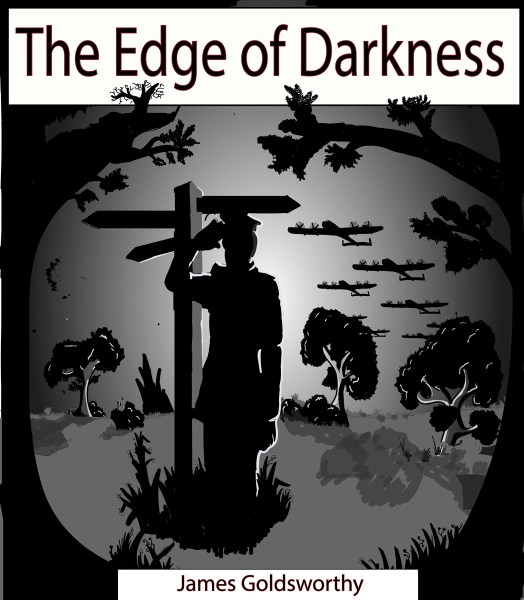
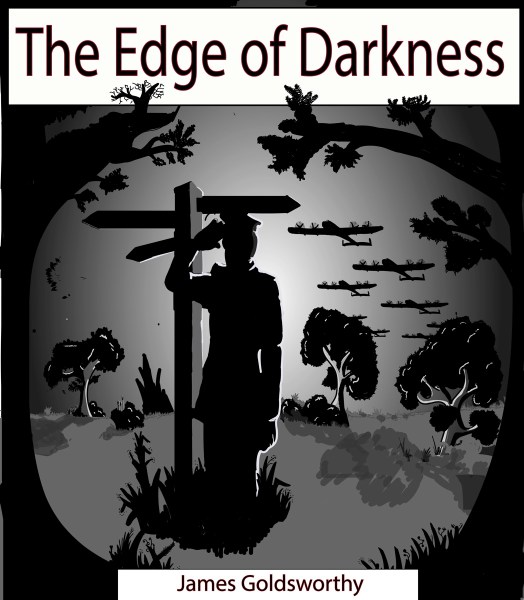
 The Edge of Darkness book cover

The Edge of Darkness: https://www.amazon.co.uk/dp/B071RN8DL7/ref=sr_1_1?ie=UTF8&qid=1493327228&sr=8-1&keywords=james+goldsworthy+the+edge+of+darkness

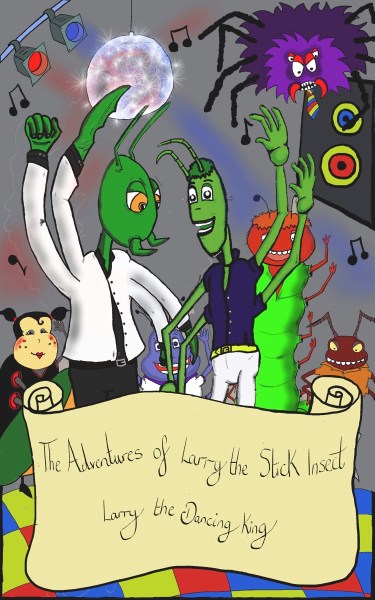
 Larry the Dancing King book cover

The Adventures of Larry the Stick Insect; Larry the Dancing King: http://amzn.to/2aee5an

——–


Parents and grandparents don’t forget, you can follow Larry on Facebook on: http://www.facebook.com/Adventuresoflarryofficial


You can also follow Larry on his very own Twitter page on: @larrythestick1


For general updates and other news about my books you can follow my author Facebook page on https://www.facebook.com/jamesgoldsworthyauthor/


And follow me on Twitter on @authorjgolds

New poetry book The Edge of Darkness now available

I’ve recently released a book of poetry. As some of you may know I am blind and work with visually impaired adults and children as an assistive technology trainer/coach. In the interest of making my book as accessible as possible I’ve published it on Amazon Kindle so it can be read by visually impaired and sighted people alike on any device with the Kindle app installed on it.


So what’s the book called and what’s it about? It’s called The Edge of Darkness and is a book of poetry presented in two collections. The first collection contains pieces I wrote during my journey through sight loss. This first collection starts off rather dark (no pun intended) but gradually becomes less so as I begin to come to terms with my situation. The second collection is made up of individual pieces that I wrote for a variety of reasons. Some because of my love of sci-fi and fantasy, some because of historic events, some because of personal experiences and some just because I wanted to.


The book can be purchased on the Amazon Kindle store at: https://www.amazon.co.uk/dp/B071RN8DL7/ref=sr_1_1?ie=UTF8&qid=1493327228&sr=8-1&keywords=james+goldsworthy+the+edge+of+darkness


You can watch a video of me talking about the book, why I wrote it and answering some questions about it at: https://www.facebook.com/jamesgoldsworthyauthor/videos/1880692925546064/


 The Edge of Darkness book cover

You can follow me on my Facebook author page on: https://www.facebook.com/jamesgoldsworthyauthor/


You can also follow me on Twitter on: @authorjgolds

New book news & taster poem

It’s not long until the release of my new book The Edge of Darkness on 28th April. I thought I’d share one of my favourite poems from the book as a taster for you. I think we can all agree that time just seems to fly by and the older we get the quicker it passes. This piece was written with precisely that in mind. I hope you enjoy it.

 The Edge of Darkness book cover

SANDS OF TIME


Forever shifting


The sands of time will not stand still for any of us


An ocean of history, of events millennia old surrounds us


Unable to reshape the past, we strive to shape the future to our own ideals


Ceaselessly, the sands of time reconfigure and keep us wondering


What is to come?


James Goldsworthy.

Copy Right 2017. All rights reserved.

Taster poem from my new book The Edge of Darkness

It’s not long until the release of my new book The Edge of Darkness on 28th April. I thought I’d share one of my favourite poems from the book as a taster for you. I think we can all agree that time just seems to fly by and the older we get the quicker it passes. This piece was written with precisely that in mind. I hope you enjoy it.

 The Edge of Darkness book cover

SANDS OF TIME


Forever shifting


The sands of time will not stand still for any of us


An ocean of history, of events millennia old surrounds us


Unable to reshape the past, we strive to shape the future to our own ideals


Ceaselessly, the sands of time reconfigure and keep us wondering


What is to come?


James Goldsworthy.

Copy Right 2017. All rights reserved.

New book release date and news

I’ve recently finished writing my new book of poetry. The book is called The Edge of Darkness and is released on Amazon Kindle on 28th April 2017 in the UK and 29th April 2017 outside the UK.

 Book cover of The Edge of Darkness by James Goldsworthy

Yesterday evening I recorded a Facebook Live video in which I talk about the book, what it’s about, why I wrote it as well as answering some questions that I’ve been asked about it. So if you’re on Facebook please feel free to click on the link below to watch the video and find out more about the book.


https://www.facebook.com/jamesgoldsworthyauthor/videos/1880692925546064/


Wishing you all a great Easter weekend.

Audio Described Movies on iTunes

The number of audio described movies on iTunes is slowly but surely increasing. This is really great news if, like me, you use audio description when watching films.


To view the list of audio described movies currently available simply go into the iTunes app on your iOS device or Mac and submit a search using the words Audio Description as the search term. You can view an information page about each movie and purchase them in the same way as you purchase music. Some even give you the option to rent the movie. Once you’ve rented a movie you have 30 days to start watching it and 48 hours to finish it once you’ve started to watch it.


The list is pretty small at the moment but more titles are being added week by week so it’s well worth checking it frequently. I’ve certainly bought a few from the list and very much look forward to increasing my audio described movie library as the list grows.

Colourfully described new book for children now available

Colourfully described new children’s book now available.


I’ve recently released my first book for children. As some of you may know I am blind and work with visually impaired adults and children as an assistive technology trainer/coach. In the interest of making my book as accessible as possible I’ve published it on Amazon Kindle so it can be read by visually impaired and sighted people alike on any device with the Kindle app installed on it.


So what’s the book called and what’s it about? The book is called The Adventures of Larry the Stick Insect: Larry the Dancing King. It’s about a young stick insect, his friends and his adventures as he attends his school’s end of year dance. Larry loves Miranda who is a beautiful Ladybird, but as with any good story there’s a bad guy. That bad guy is Marv, a Praying Mantis who along with his sidekicks Vic and Kane bullies Larry and his friends and acts like he owns the school. In Larry the Dancing King Larry is confronted by Marv in front of his entire school, but Larry has a secret which he reveals to the astonishment of everybody present. The book is funny and paints a vivid picture of the action whilst having a good moral at its core. It’s been well received by children and adults alike.


The book can be purchased on the Amazon Kindle store at:  http://amzn.to/2aee5an

——–


You can follow Larry on Facebook on: http://www.facebook.com/Adventuresoflarryofficial


You can also follow Larry on his very own Twitter page on: @larrythestick1

2016 VoiceOver accessible iOS apps for children and families

I thought I’d write another blog like the one I did last year giving twelve of the best accessible apps for kids that are currently available for Apple iOS devices. So here are the apps I’ve chosen for 2016. All of them are fully accessible with VoiceOver. Just like last year I’ve tried to get a reasonable mixture of apps that are useful, educational and fun, but that can also be used by kids and families alike. This year I’ve only included free apps as there are so many good accessible free apps out there now. Some of them do have optional in-app purchases, but where possible I’ve only gone for completely free ones. In the list below you’ll find the name of the app, a brief description of what it does as well as which devices and operating systems it will work with, whether there are optional in-app purchases and finally a link to its page on the Apple iOS app store.


App name: World Documentary.

Price: Free.

Description: This is a fantastic free app that’s uncomplicated and incredibly easy to use. It pulls together a vast number of documentaries covering a wide variety of topics. Documentaries are organised into categories such as cities and countries, pages of past/history, transportation, the natural world, personalities, all about the universe, military and war and several more. Although the documentaries are not audio described there is so much dialogue in them that it doesn’t really matter. It’s a great app for slightly older kids who are at the stage where watching documentaries is useful to their school work but also if you’re a fan of documentaries in general. Note that you will need to be connected to wi-fi to use this app as you will be streaming the documentaries as you watch them.

Devices this app is suitable for: iPhone, iPad and iPod Touch running iOS 8 or later.

Get the app in the iOS app store at: https://appsto.re/gb/X8GKI.i


App name: Geek Quiz.

Price: Free with optional in-app purchases.

Description: A great quiz about all things geeky including computing, technology, space, science, video games and science fiction. It has single player or multiplayer modes and is completely accessible. Brilliant for kids and/or adults who are not afraid to show their inner geek. Very educational as the questions are so different to those that are normally found in general knowledge quizzes.

Devices this app is suitable for: iPhone, iPad and iPod Touch running iOS 9 or later.

Get the app in the iOS app store at: https://appsto.re/gb/ZFE4D.i


App name: QuizBang.

Price: Free with optional in-app purchases.

Description: A great general knowledge quiz for single or multiple players. This app regularly and automatically updates its questions each time you use it, so the quiz keeps up with the times. Excellent for general knowledge and educational whilst being fun.

Devices this app is suitable for: iPhone, iPad and iPod Touch running iOS 9 or later. Also offers AppleWatch and AppleTV apps.

Get the app in the iOS app store at: https://appsto.re/gb/2DwV-.i


App name: TuneClash.

Price: Free.

Description: An absolutely brilliant music quiz in the style of Name That Tune. A huge number of music categories to choose from. The app plays a segment of a song and gives you multiple choices for the answers. Single or multi player modes. Really good fun and completely accessible.

Devices this app is suitable for: iPhone, iPad and iPod Touch running iOS 9 or later. Also offers AppleTV app.

Get the app in the iOS app store at: https://appsto.re/gb/aol6-.i


App name: Boop.

Price: Free.

Description: This is a superb light detecting app that can be used to determine whether lights have been switched on, if it’s light or dark outside and even if LED lights on electronic devices are on . The app uses the camera of your iOS device to detect light. I’m completely blind and have no light sensitivity at all and this app has proven to be useful time and again. The app emits a tone that increases in pitch the brighter the light is, which means that focusing the camera over an LED actually works.

Devices this app is suitable for: iPhone, iPad and iPod Touch running iOS 8 or later.

Get the app in the iOS app store at: https://appsto.re/gb/8ViPdb.i


App name: Scout Legend.

Price: Free, offers in-app purchases.

Description: This is a really nice little app great for boys and girls. It works along the same lines as Tamagotchi used to in that you play a girl or boy Scout who you feed, water, control activities, choose outfits when you’ve earned enough points from the activities you’ve done. Fully accessible, free and fun, although maybe just a little bit addictive.

Devices this app is suitable for: iPhone, iPad and iPod Touch running iOS 8 or later.

Get the app in the iOS app store at: https://appsto.re/gb/HinC4.i


App name: YesChef.

Price: Free.

Description: This is quite possibly the best app in this list in terms of usefulness, accessibility and fun factor. It’s an app that allows you to search for recipes, get the list of ingredients for the recipe you’re using, listen to step by step instructions and ask questions all hands free and with voice feedback. I’ve used this app with my two nieces who are not visually impaired at all but loved it as it was fun and easy to use; not to mention that they found it hilarious watching their uncle making a mess in the kitchen! This app is absolutely fantastic for kids who are at the stage of needing to come up with recipes and actually cook them at school.

Devices this app is suitable for: iPhone, iPad and iPod Touch running iOS 8 or later.

Get the app in the iOS app store at: https://appsto.re/gb/MiMibb.i


App name: Aipoly Vision.

Price: Free.

Description: An incredibly useful app that has two functions, as a colour detector and an object identifier. Select the colour detector function, point your device’ camera at the item you want to hear the colour of and the app announces the colour out of a list of over 900. I often use this to identify which colour shirt I’m going to wear. Alternatively switch the app to object identification mode, point your device camera at the object you want to identify then single finger double tap the on/off button located on the screen just above the Home button. The app will then announce the object or say that it’s not sure if it can’t identify it. You can also teach the app what items are by taking a photo and submitting it with a description, this is particularly useful as it makes the app more accurate for everybody who uses it. The app does not require a wi-fi connection to use it.

Devices this app is suitable for: iPhone 5S/6/6+/6S/6S+/SE/7/7+, iPad Air/Air 2, iPad Mini 2/Mini 3/Mini 4, iPad Pro (both sizes) and iPod Touch 6th generation running iOS 9 or later. I suspect that it may also work on iPad 3rd generation and later, but I don’t have one so I’m afraid I cannot confirm that.

Get the app in the iOS app store at: https://appsto.re/gb/L9IU_.i


App name: Smart Metronome.

Price: Free.

Description: This is one for you musicians out there. Finally a fully accessible metronome app. You can easily increase or decrease the speed and rhythm pattern. Very easy to use and free.

Devices this app is suitable for: iPhone, iPad and iPod Touch running iOS 7 or later.

Get the app in the iOS app store at: https://appsto.re/gb/YNCb1.i


App name: Wikipedia.

Price: Free.

Description: A very useful app for research or just for reading about things you’re interested in. This new Wikipedia app is really very good, it’s fully accessible and easy to use.

Devices this app is suitable for: iPhone, iPad and iPod Touch running iOS 9.3 or later.

Get the app in the iOS app store at: https://appsto.re/gb/MlSwt.i


App name: Blindfold Word Games.

Price: Free with optional in-app purchases.

Description: A great little app that includes 5 different word games. Great for improving spelling and of course it’s fully accessible.

Devices this app is suitable for: iPhone, iPad and iPod Touch running iOS 8 or later.

Get the app in the iOS app store at: https://appsto.re/gb/m6sK_.i


App name: Blindfold Greeting Card.

Price: Free with optional in-app purchases.

Description: I couldn’t resist including this one as it’s Christmas. This is a really nice little app that allows you to send personalised audio greetings cards. It was my partner’s birthday recently and I used this to send her a card and she liked it very much. The app allows you to choose a sound effect or piece of music as an intro before the person receiving the card hears your personalised voice message. You can send 10 cards for free and then extra cards are are bought through in-app purchases. I thought this would be a nice one for this time of year as most kids will find a use for 10 free cards to send to friends and family.

Devices this app is suitable for: iPhone, iPad and iPod Touch running iOS 8 or later.

Get the app in the iOS app store at: https://appsto.re/gb/LFo0db.i


That wraps up this years list. I hope you find some or all of these apps useful.
How to turn off the “Press home to open” function on iOS 10

If you’ve updated your iPhone, iPad or iPod Touch to iOS 10 then you may be finding the “Press home to open” function a real pain. Some people like it but a lot of people seem to hate it and find it difficult to get used to. However, as long as it’s on a device that uses touch ID it is possible to turn it off so you can unlock the device in the same way that you used to on iOS 9.


If you’ve updated a device to iOS 10 that does not have the touch ID facility, an iPod Touch for example, then unfortunately the option to turn the function off does not exist.


To turn the “Press home to open” function off do the following:


Step 1: Go to Settings.


Step 2: Go to General.


Step 3: Go to Accessibility. Under the “Interaction” heading go to the “Home” Button.


Step 4: You’ll now find a “Rest finger to open” button at the bottom of the list of options. By default this setting is off. If you’re using VoiceOver single finger double tap this button, if you’re not using VoiceOver simply tap the button once, this turns the setting on and your iOS device will no longer require you to press the Home button to unlock it.

My AppleWatch Experience, Watch 3.0 and how it affects VoiceOver users

Watch 3.0 has been out for a couple of days now, I initially thought it’d just be another update that I’d install only to find it didn’t really change much for me as a VoiceOver user. But I have to admit I was wrong.


I’ve been a fan of the AppleWatch since its release last year and despite a lot of the media gripes about it under performing, not having it’s own cellular connectivity, being too expensive etc, I still think it’s a great device that will evolve into something that many people will end up using. Although I doubt that will be the case for several years, I do feel that the AppleWatch is absolutely fantastic for those of us who are visually impaired or blind and use VoiceOver. It was an absolute revelation for me to finally have a watch that talked in a voice that was clear and understandable, that gave me the ability to adjust its speech volume on the fly and that actually had the potential to be of genuine use on a daily basis. One of the biggest reasons I took the plunge was the ability to check emails and messages etc whilst I’m on the road or with clients. The fact I can do so extremely quickly makes life much easier. I often check these things throughout the day and much of the time my assistant isn’t even aware I’ve done so. This for me is great because it means I don’t need to dig out my iPhone and do so in front of clients at a louder volume.


So getting down to the point of this blog, what’s the release of Watch 3.0 done for VoiceOver users in particular? Well, put simply it’s massively improved the usability of a device that was already pretty damned usable. Let’s be honest about it, Watch 1.0 introduced VoiceOver users to the AppleWatch and made it mostly accessible, Watch 2.0 refined that accessibility  a little more and made using the watch a more pleasurable experience. What Watch 3.0 has done is not only refined accessibility considerably more, but has boosted the overall performance of the watch in a big way and this of course has had a significant, positive impact for AppleWatch owners, including those using VoiceOver.


I’ve installed Watch 3.0 on my first generation AppleWatch so obviously I can only really comment on what has changed on it. Those who purchase a second generation AppleWatch will of course find additional differences in standards of performance etc.


The first thing you notice once you’ve installed Watch 3.0 is just how much faster everything is. This may sound a bit of a vague statement, but with Watch 2.0 apps would take around three seconds on average and sometimes as long as five or six seconds to open. Doesn’t sound long I know but believe me, if you’re trying to do something on the move it feels like an eternity. With Watch 3.0 opening an app is almost instantaneous,. The other thing connected to this is the speed at which the watch switches from the clock face screen to the apps screen when you press the digital crown, as again it’s pretty much instantaneous. These two improvements are brilliant for VoiceOver users as you no longer get that horrible lag between when you double tap on an app or press the digital crown and when the app actually opens or the screen switches.


There are some new additions to Watch 3.0, only two of which I’m going to focus on here. The first is Emergency SOS. This function allows you to choose up to three people from your contacts who will be messaged in the event that you call the emergency services. The way it works is that if you need to call the emergency services you hold down the side button on your AppleWatch and the watch makes the call for you. Whilst you’re on the call the watch sends your current location to the emergency call operator so they can find you. In the meantime any contacts you’ve added are sent a message informing them that you’ve called the emergency services and also sends them your current location. I think this is a brilliant addition to the AppleWatch and can imagine that many people could be helped by it in the future.


If you wish to activate the Emergency SOS function on your AppleWatch go to the AppleWatch app on your iPhone, then go to General and finally go into Emergency SOS.


The next addition, or perhaps I should say change, is the removal of the Friends list to be replaced with the Doc. Where on Watch 1.0 and 2.0 you could press and release the side button to go to a list of friends you had allocated to a list of your most contacted, pressing and releasing the side button on Watch 3.0 opens the Doc. Just like on the iPhone, iPad and iPod Touch where you have a Doc in which you can place up to four apps that you use most often and/or want to get to quickly, the AppleWatch now has the same. The Doc on the AppleWatch has two additions however, you can place up to four apps in the Doc just as you can on iOS devices. Below those apps the Doc displays the last app you had open so you can go straight back to it. Then below that there’s a “Now Playing” option. Single finger double tapping on the “Now playing” option opens a player controls screen that displays the name of the song, audio book or pod cast you’re listening to as well as allowing you to Play/Pause, skip backwards, skip forwards and adjust volume. I think the addition of the Doc will be welcomed by most VoiceOver users, not only because it works well, but because by using it in conjunction with Digital Crown Navigation the whole process of using it is a pleasurable experience rather than the more frustrating experience we had on Watch 1.0 and 2.0.


To reorder the apps in your Doc go to the AppleWatch app on your iPhone then go into the Doc settings area. Once you’re in there the four apps that are in the Doc by default are displayed at the top of the screen in a list. Below that list there’s a “Do not include” list. You can easily change which apps are in your Doc by single finger double tapping on the Edit button found at the top right corner of the screen. Once you’ve done this a “Reorder” button appears alongside the name of each app up the right side of the screen. Simply single finger double tap and hold on the “Reorder” button of the app you wish to move and drag your finger up or down the list. VoiceOver will announce where you’re moving the app to. For example. “Messages moved below Maps”. You can move apps into or out of the Doc list using this method. Once you’ve finished moving the apps simply single finger double tap on the “Done” button found in the top right corner of the screen.


There are also reported to be battery life improvements with Watch 3.0, but as I’ve only had it for a couple of days I can’t really comment much about that, but time will tell.


In summary, I think that anybody who owns a first generation AppleWatch and uses VoiceOver would benefit from installing the Watch 3.0 update, it’s faster, smoother and I feel more user friendly than its predecessors.

Enablement coach specialising in sight loss, assistive technology training on Apple VoiceOver, Dolphin Guide & SuperNova, coaching for living with sight loss, back to work skills & confidence building